Ever wondered why your iPhone suddenly thinks it’s a secret agent, sending calls straight to voicemail like it’s dodging paparazzi? You’re not alone. Many users find themselves scratching their heads as their phones play hard to get, leaving friends and family wondering if they’ve been ghosted.
This frustrating phenomenon can turn even the most patient person into a detective, hunting down the culprit behind those missed calls. Whether it’s a sneaky setting or a software glitch, understanding why your iPhone is pulling this stunt can save you from countless “Did you get my call?” texts. Let’s dive into the quirky world of iPhone call management and uncover the reasons behind this baffling behavior.
Understanding the Issue
iPhones may send calls directly to voicemail for several reasons. Users often experience surprise and frustration when this occurs, with calls not ringing as expected.
Common Reasons for Voicemail Redirects
Certain settings may trigger voicemail redirects on an iPhone. Do Not Disturb mode silences incoming calls and directs them to voicemail. Additionally, network issues can disrupt call connectivity, leading to unintended voicemail redirection. Call forwarding settings also play a role; if activated, they may reroute calls without notice. Users sometimes forget to disable these features, resulting in missed communications.
Technical Glitches
Software bugs can cause calls to go directly to voicemail. Occasionally, application conflicts arise, leading to erratic behavior in call handling. Outdated operating systems create compatibility issues that can affect call functionality. A simple reset or software update often resolves these glitches. Network settings may also require adjustment to restore normal call behavior. Rebooting the iPhone serves as a quick fix in some scenarios, refreshing the device’s connection to the network.
Settings to Check
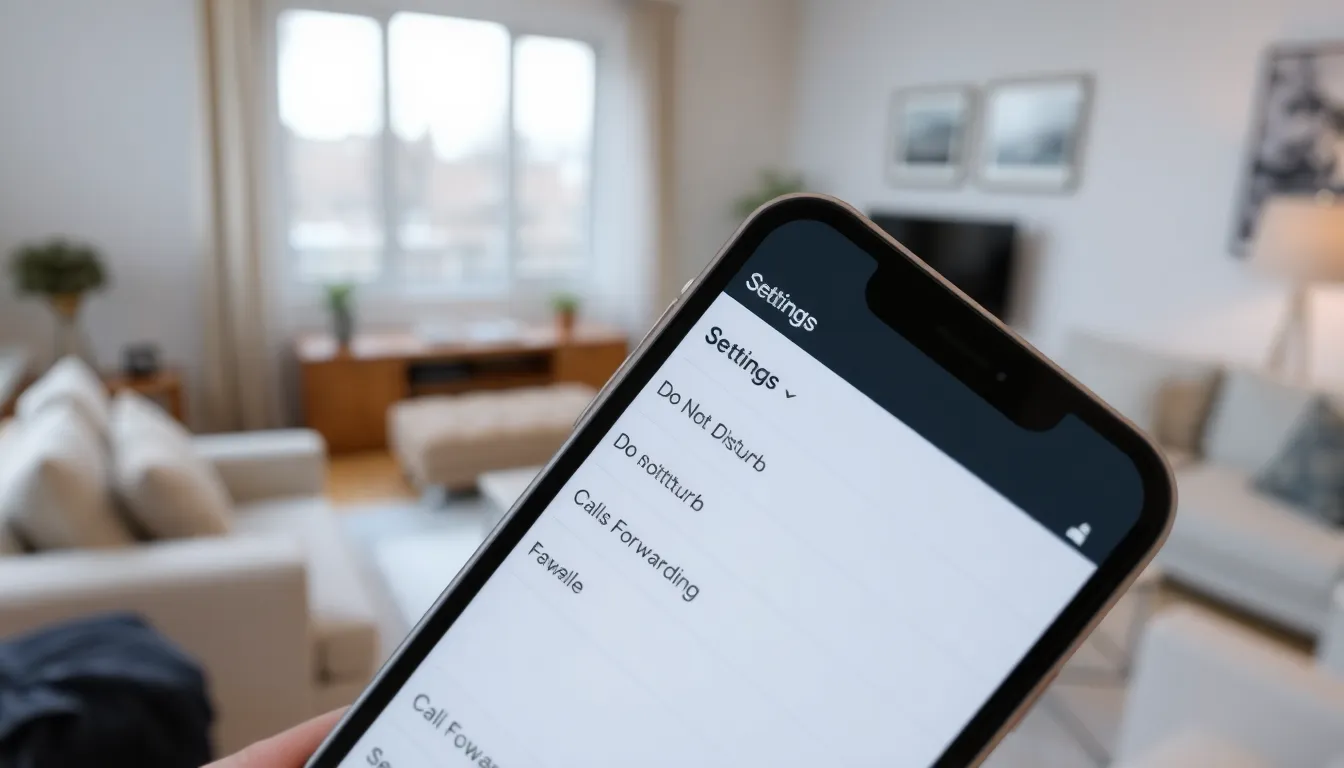
Certain settings may cause an iPhone to send calls to voicemail inadvertently. Users should explore these areas to ensure smooth call functionality.
Do Not Disturb Mode
Do Not Disturb mode silences incoming calls and notifications. When enabled, this feature can lead to missed calls that go directly to voicemail. Users can check the control center or go into Settings to see if this mode is activated. Disabling it restores normal call behavior. If scheduled times for Do Not Disturb exist, ensure they align with expectations. Activating or deactivating this mode only takes a moment, but it can significantly impact connectivity.
Call Forwarding Options
Call forwarding directs incoming calls to another number or voicemail. When this feature is inadvertently enabled, callers won’t reach the intended user. Users can find call forwarding settings in the Phone section under Settings. Turning off this feature or adjusting the settings ensures that calls reach the device directly. Occasionally, third-party applications may interfere with these settings, so reviewing app permissions is also beneficial. Addressing call forwarding can resolve unexpected voicemail issues quickly.
Network-Related Causes
Network issues can prompt an iPhone to send calls directly to voicemail. Understanding these causes can help users identify and resolve the problem quickly.
Signal Issues
Weak cellular signals reduce call connectivity. When users find themselves in areas with poor coverage, their iPhones may redirect calls to voicemail. Checking the signal strength indicator on the device provides immediate insight into connectivity status. If the bars appear low or absent, relocating to a different area may improve reception. Additionally, obstructions like buildings or natural features can worsen signals. Users facing consistent signal drops should consider contacting their carrier for assistance.
Carrier Settings
Carrier settings updates ensure optimal performance on an iPhone. These updates can include improvements related to network connectivity and voicemail functions. Users should regularly check for carrier updates by going to Settings, then General, and finally About. If an update is available, a prompt will appear, allowing the installation of the latest settings. Ignoring these updates can lead to persistent call issues, so keeping them up to date is beneficial. Contacting the carrier directly can also clarify if there are known issues affecting service.
Troubleshooting Steps
Resolving the issue of calls being sent to voicemail involves a few straightforward steps. Start by exploring these key methods to restore normal function.
Restarting Your iPhone
Restarting an iPhone often resolves minor glitches. Users find that holding down the side button and one of the volume buttons until the slider appears allows them to power off the device. After turning it back on, the network connection might reset, potentially fixing call issues. He or she should observe whether the calls still redirect to voicemail afterward. This simple action frequently clears temporary software hiccups.
Updating Your Software
Keeping software updated ensures optimal performance. Users must navigate to Settings, then select General, followed by Software Update. If an update is available, downloading and installing it can fix bugs that cause call functionalities to fail. Regular checks for updates enhance device reliability. She or he should also confirm that carrier settings are updated, as these adjustments can improve network and voicemail interactions. Regularly updating software safeguards against persistent issues.
When to Seek Professional Help
Experiencing persistent issues with calls going directly to voicemail can indicate deeper problems that require expert assistance. If troubleshooting doesn’t yield results, seeking help from a professional can provide clarity. Users who notice unusual behavior, such as calls continuously dropping or missed notifications, should consult a technician.
In situations where software updates fail, visiting an Apple Store or authorized service provider may be necessary. Technicians possess tools and knowledge to diagnose hardware or software issues more thoroughly. Individuals unable to resolve connectivity problems through carrier settings adjustments may find relief through professional support.
Additionally, users should not overlook irregularities with their device hardware. Malfunctions in components like the antenna or microphone can affect call functionality. Consulting with a professional ensures accurate identification of such underlying issues.
Asking for assistance also becomes critical if device resets do not resolve the problem. Technical specialists can explore advanced diagnostics that are often beyond users’ capabilities. Given the complexity of network-related problems, professional help offers insights that users may not easily access.
Maintaining communication with the carrier is essential when all else fails. Providers often have resources and insights into network issues affecting multiple customers. Professional advice can offer solutions tailored to the specific device and circumstances, ensuring users regain reliable call functionality.
Resolving the issue of iPhones sending calls to voicemail requires a careful examination of settings and potential glitches. By understanding the various factors at play users can take proactive steps to ensure they don’t miss important calls. Regularly checking settings like Do Not Disturb and call forwarding can prevent unnecessary confusion.
Additionally keeping software and carrier settings up to date enhances overall call functionality. If problems persist seeking professional assistance may be necessary to address deeper issues. With the right approach users can restore their iPhone’s call capabilities and maintain better communication.